Create, edit, or remove a JavaScript system column
Guide to creating, editing, or removing JavaScript system columns in NIM, including best practices and error handling.
Create a JavaScript system column
For more information, see Custom JavaScript columns.
Expand a system's table list.
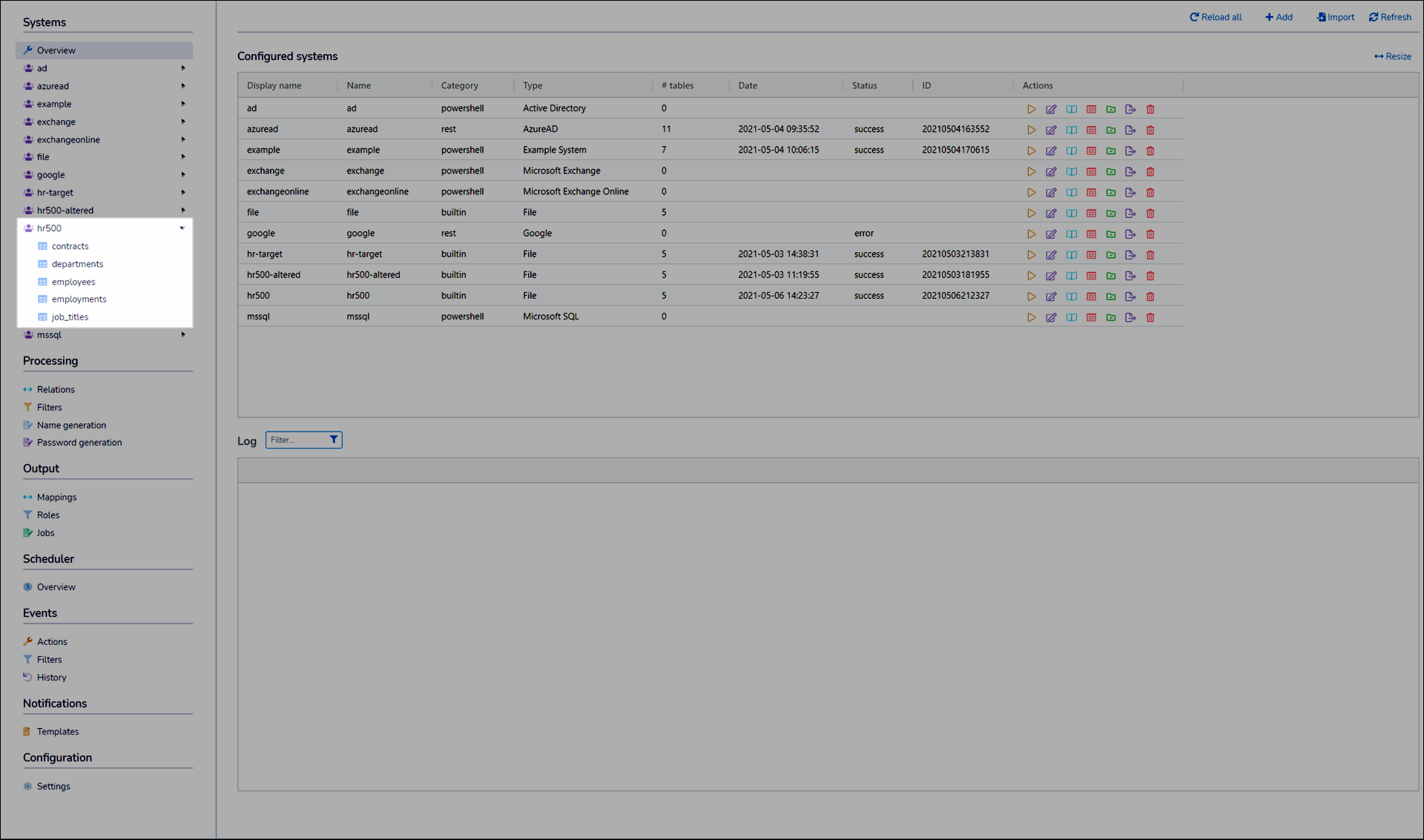
Go to the relevant table.
Go to the Columns tab.
Click Add.
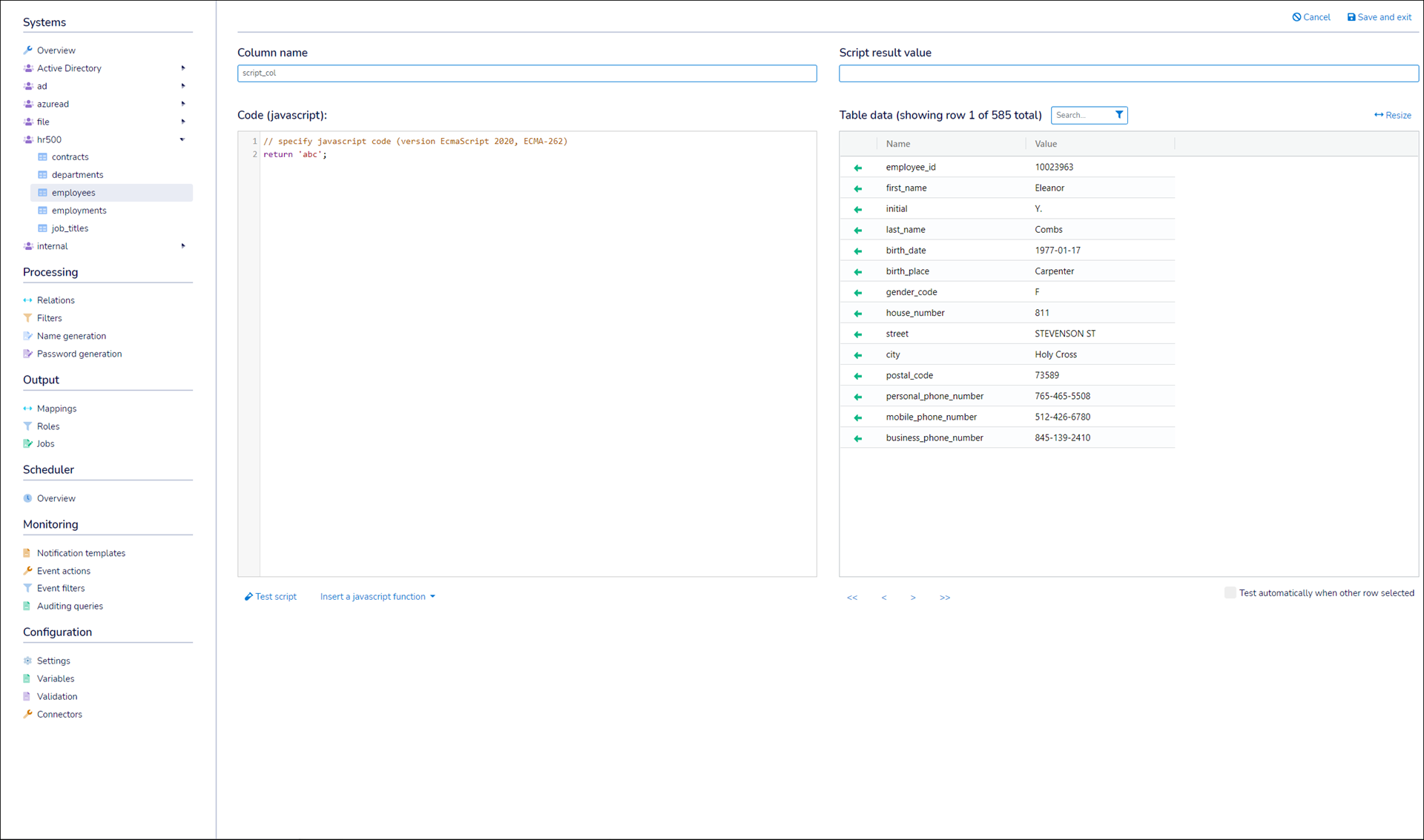
Enter a Column Name.
Enter your JavaScript in the Code pane.
Optional: Click a
 Green Arrow to insert a column variable into the current cursor position in the Code pane.
Note
Column variables are accessed using non-standard JavaScript notation, in the format
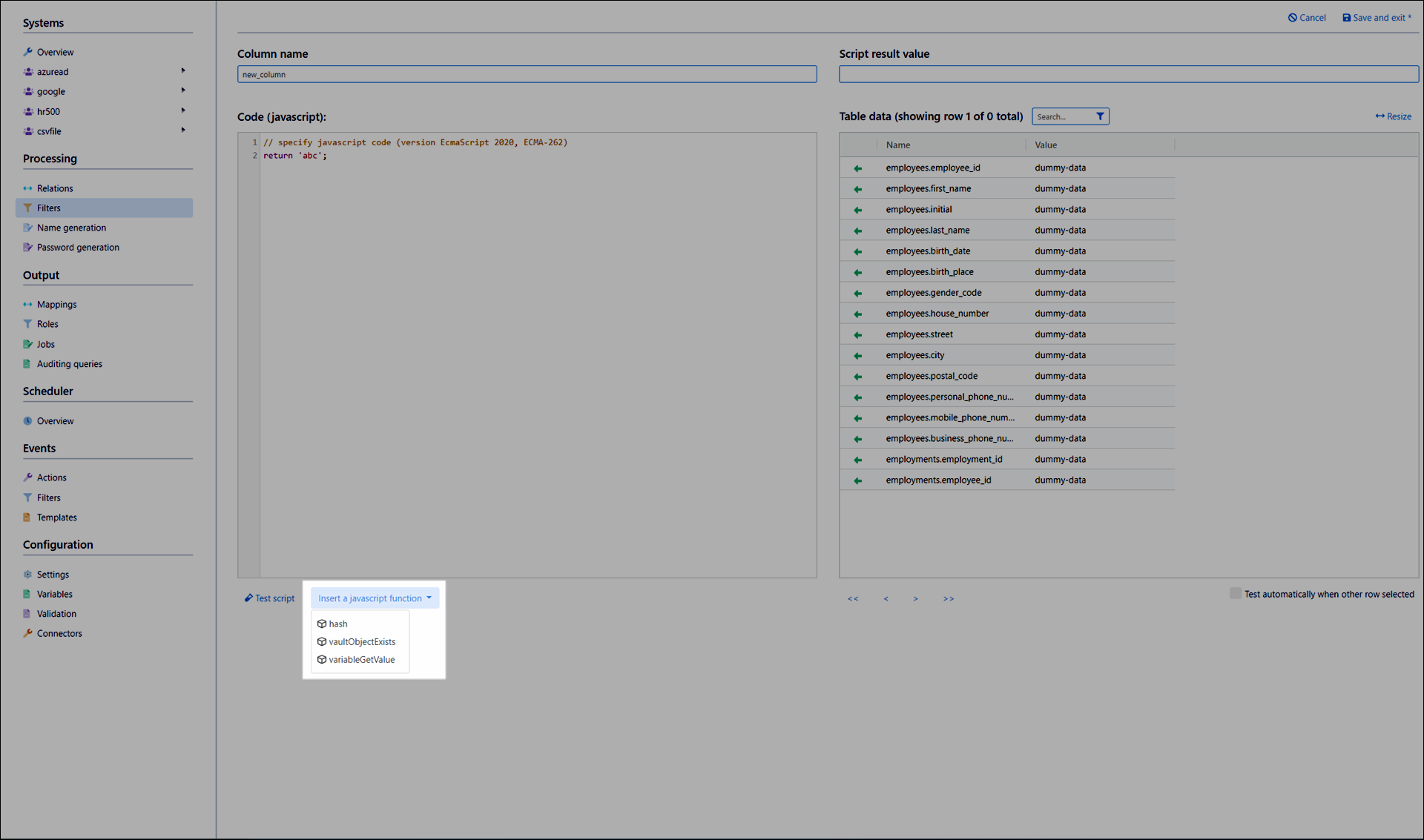
tableName['variableName']. For example,employees['employee_id'].Optional: Click Insert A JavaScript Function to insert hash functions, Vault Queries, or variable queries.
Click Test Script to execute your JavaScript code.
The result appears in the Script Result Value field.
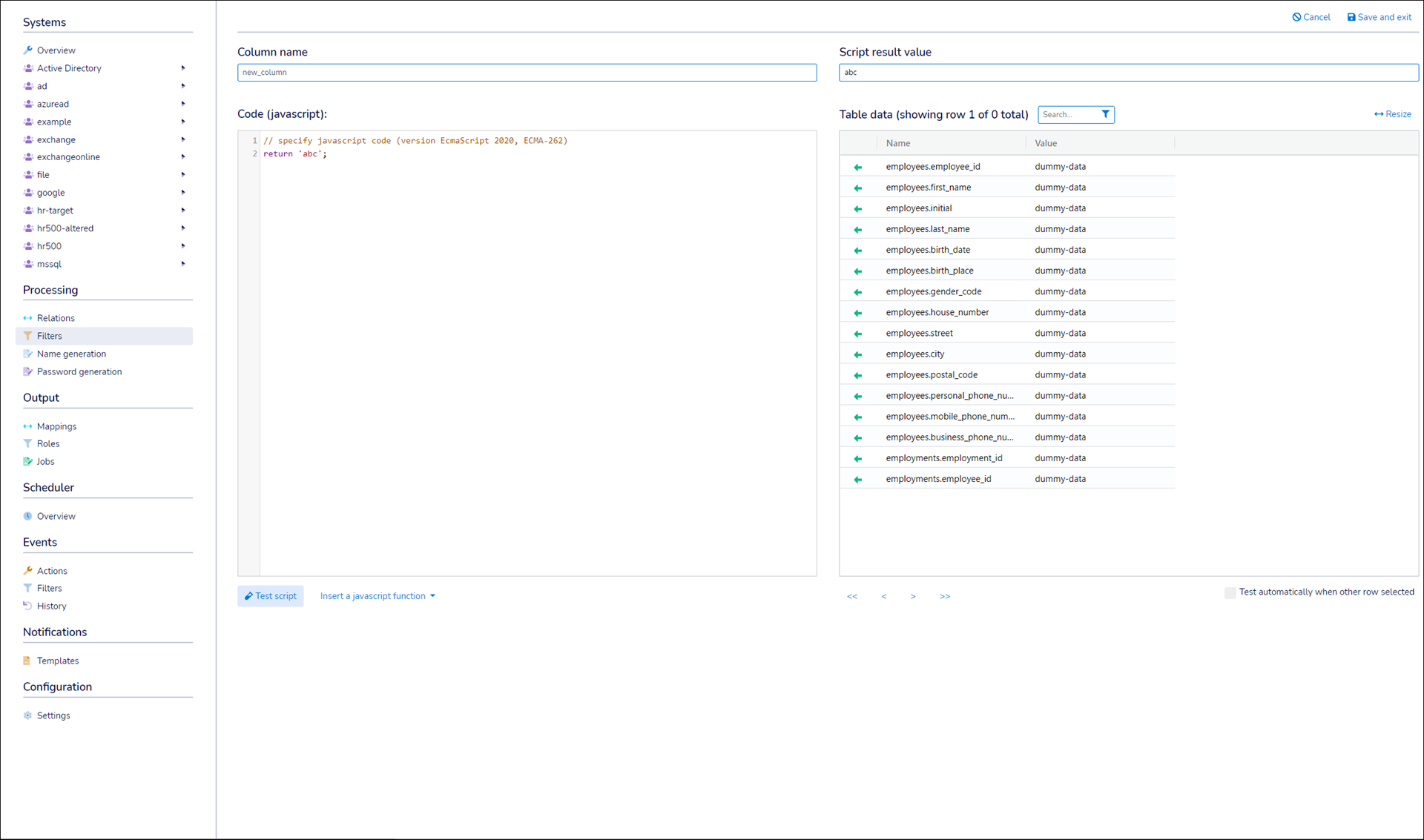
Click Save and Exit.
Expand a system's table list.
Go to the relevant table.
Go to the Columns tab.
Click
 Edit Column for the relevant column.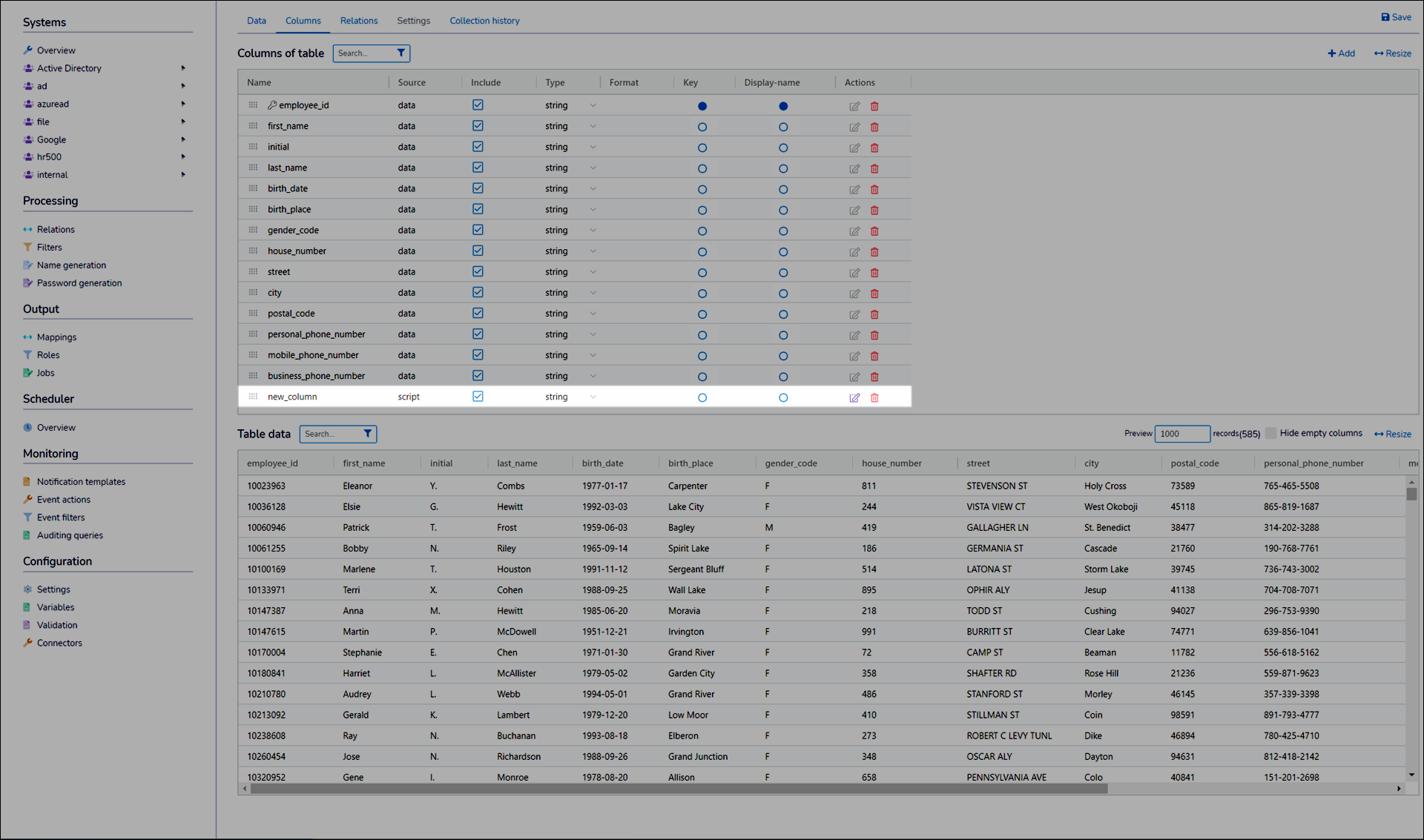
Continue by following the steps in Create a JavaScript system column.
Expand a system's table list.
Go to the relevant table.
Go to the Columns tab.
Click
Remove Column for the relevant column.Click Yes.
Click Save.
You can add custom JavaScript columns as extra columns to a filter's results or directly to any system table.
Columns added to a system table can be referenced multiple times throughout NIM and used in filters just like any other column in that system table. Any updates to these columns will immediately affect all areas in NIM that use them. However, the limitation is that a custom JavaScript column on a system table can only reference other columns within the same table.
Columns added to a filter offer greater flexibility, as they can reference any other column within the same filter, including columns from different tables and systems. This is more flexible than adding custom JavaScript columns directly to system tables. The downside is that custom JavaScript columns added to one filter cannot be used as criteria in other filters. Additionally, you must duplicate the script in each filter where you need the same custom field.
To determine the best place to create a scripted column there some things to consider:
Will this value be used multiple times or will it impact multiple layers/entities in NIM?
E.g. All of the values in the FirstName column have trailing spaces: Trimming this value will need to happen in the filters and also in the name gen. Thus, creating the column on a system table is best.
Can the resultant value be determined solely from the data in a single table or do I need data from other joined in tables?
E.g. The OU path for a user is based on their grade level and their building name: If Grade Level and Building Name are not available in the same table, then a column within a filter is best.
There are two situations where fields that you're evaluating in a Scripted Column may throw errors:
The value in the table is simply blank
Not all user objects in AD will have a description specified
See more on Nullish Coalescing
The value is coming from an "any-none" join in your filter
Not every user record in the HRMS/SIS may have an AD account
See more on Testing for Undefined
A simple way to catch errors in your scripts is to wrap the issue code in a try/catch block
let foo = 'bar'; //default value
try {
	foo = Users['description'].toLowerCase();
}
catch(e) { }
This method can become messy and difficult to understand in more complex scenarios.
The Nullish-Coalescing (see example #1 above) operator can be used to get the variable value or a default value if the variable value is empty:
let foo = (Users['description'] ?? 'bar').toLowerCase();
In the case of example #2 above, we also want to check if the table/collection object is undefined. This is a good method to use regardless of if the table is expected to be null or not.
Snippet 1: Check for undefined via TypeOf
let foo = (typeof Users_01 !== 'undefined') ? Users_01['description'] : 'bar';let foo = (typeof Users_01 !== 'undefined') ? Users_01['description'] : 'bar';
Snippet 2: Check for undefined via direct comparison
let foo = (Users_01 !== undefined) ? Users_01['description'] : 'bar';
The two methods can be combined - the first check to ensure that the table has a record. If the record does exist, then also handle the situation where the field could be empty:
let foo = (typeof Users_01 !== 'undefined') ? (Users_01['description'] ?? 'foobar') : 'bar';
Here is a real world example of this
let result = '';

let LocationAssignment = (typeof AssignConfigEmployeeLocation !== 'undefined') ? (AssignConfigEmployeeLocation['LocationName'] ?? '') : null;
let Location = (typeof ConfigEmployeeLocation !== 'undefined') ? (ConfigEmployeeLocation['LocationName'] ?? '') : null;
let WorkLocationAssignment = (typeof di96_pcassign_export !== 'undefined') ? (di96_pcassign_export['work_location_name'] ?? '') : null
let WorkLocation = (typeof di96_perpay_export !== 'undefined') ? (di96_perpay_export['work_loc1_name'] ?? '') : null


if(LocationAssignment != null) {
  result = LocationAssignment
}
else {
  if(Location != null) {
  	result = Location;
  }
}

if(result === null || result.length < 1)
{
  if(WorkLocationAssignment != null)
     {
       	result = WorkLocationAssignment
     } else {
       if(WorkLocation != null) {
        	result = WorkLocation
       }
     }
}

return result
String interpolation offers a way to define a string structure with variable placeholders and implicitly convert the value of the expression/variable to a string value. This is the recommended method of building strings.
See more on Template Literals
Tip
Template strings are enclosed in the tick character ( ` ).
// String concatenation
return "Student @ " + Students['BldName'] + " | " + Students['Grade'].toString() + ".";

// Templated strings
return `Student @ ${Students['BldName']} | ${Students['Grade']}.`;return `Student @ ${Students['BldName']} | ${Students['Grade']}.`;
The placeholders ("${...}") in the template string can contain full expressions:
return `Grade ${Students['Grade'].slice(-2)}`;